 Adventure Timeline
Your private travel diary
Bring in the trips Google Maps Timeline already found, then add the photos, ratings and stories that make each one memorable. Everything stays on your phone.

Free and open source. No account, no ads, no tracking. Needs Android 8.0 or newer.
What it does
A diary for the trips you take: where you went, how you got there, who with, and what you saw.
Starts with your Timeline
Import the trips Google Maps Timeline has already detected, with their legs, transport and route. Re-import later and your own edits are kept. Have a GPX file from a GPS unit, Strava or Komoot? Import that too.
Route maps that tell the story
See every trip on an OpenStreetMap route. Legs are coloured by how hard they were, and the home screen shows all your trips on one map, coloured by star rating.
Photos, video and voice notes
Capture them in the app, or link the ones already on your phone. Photos taken along your route are suggested for the trip, and they show up as pins on the map.
Rate and remember
Give each trip a star rating, and each leg a difficulty and an enjoyment score. Quick timestamped notes capture how it felt at the time.
Log what goes wrong
Tipped over in a river? Took a wrong turn? Log it on the spot, with photos and video. It finds its trip once that is imported, and shows up on the map.
Share a trip
Turn a trip into a ready-to-post caption with the map and photos as separate pictures, or a single picture or PDF, or just the route as a GPX or KML file. Your home area can be left off the map.
Private by design
No account, no ads, no analytics. Your diary lives on your phone, and a one-tap backup zip goes wherever you choose, such as Drive or your computer.
A look inside
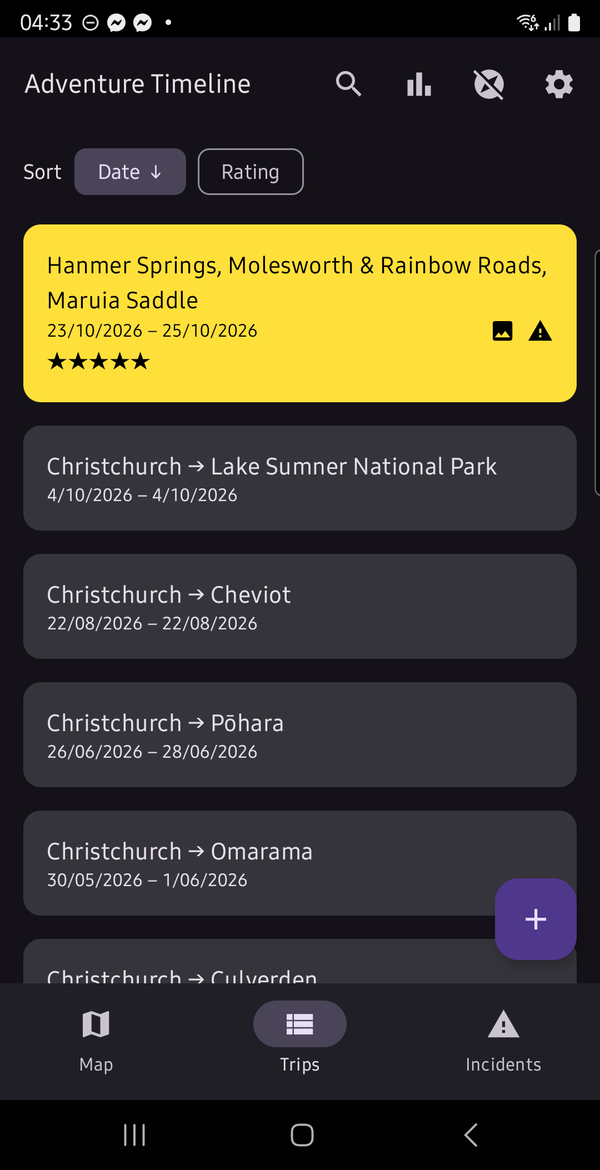
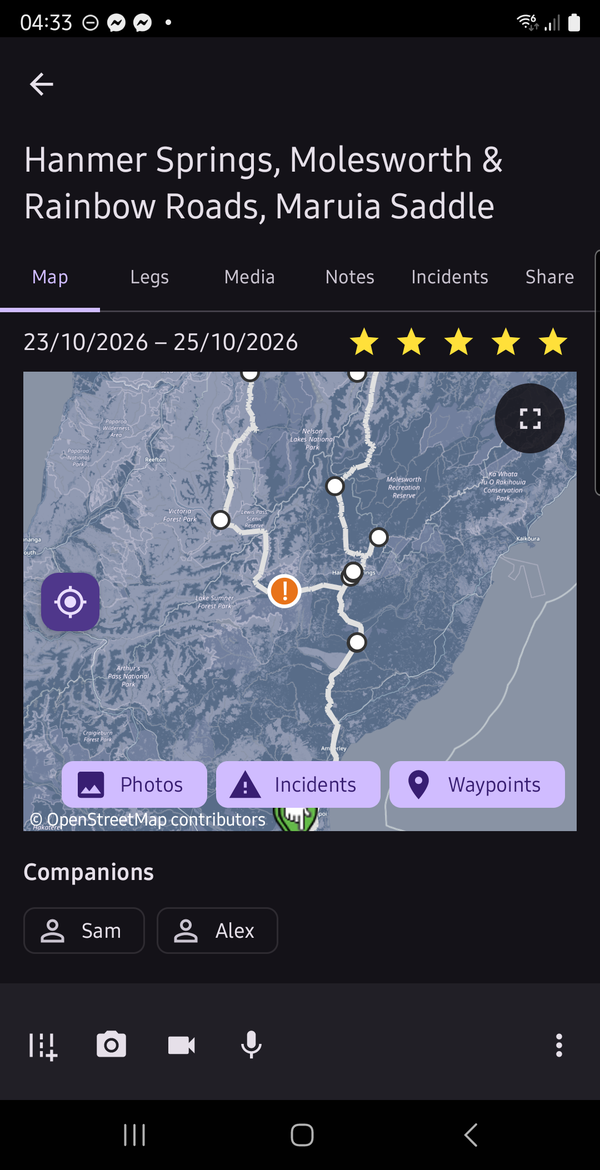
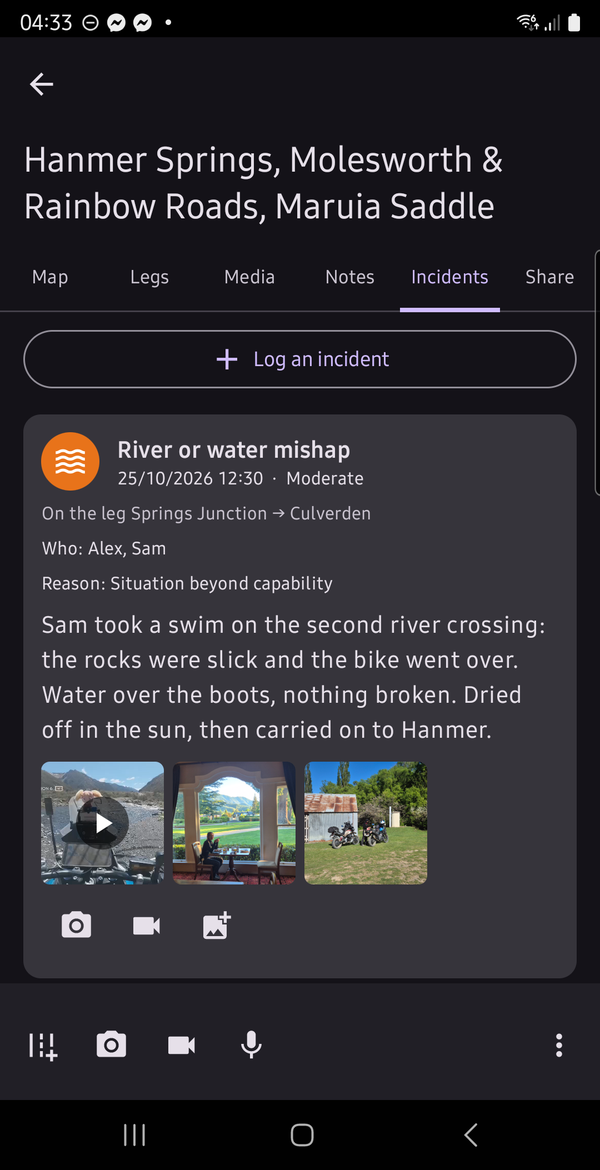
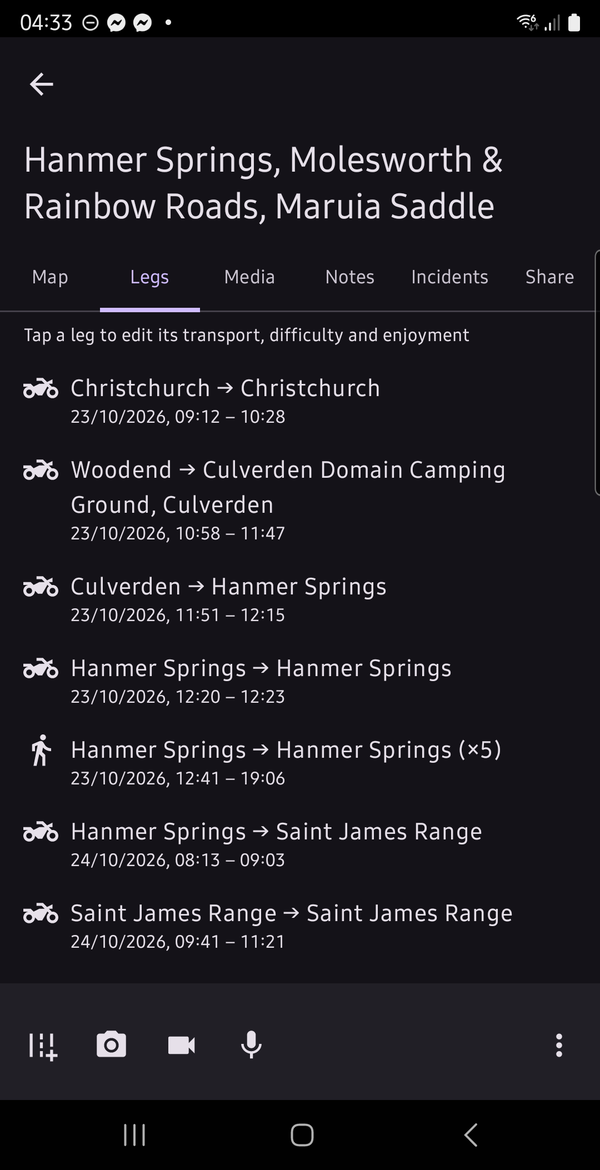
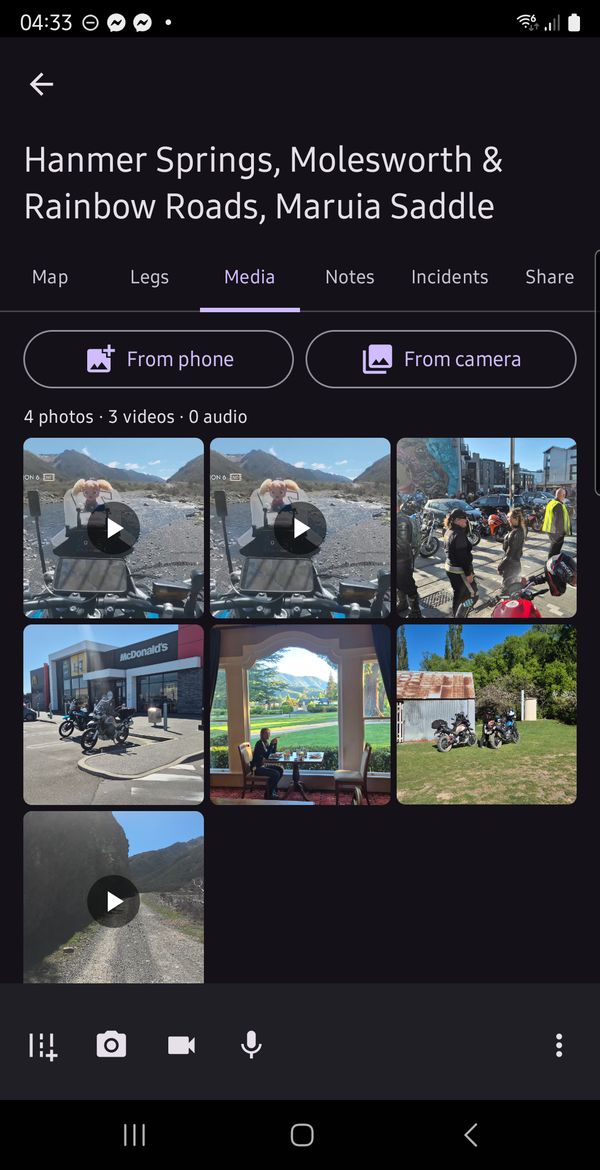
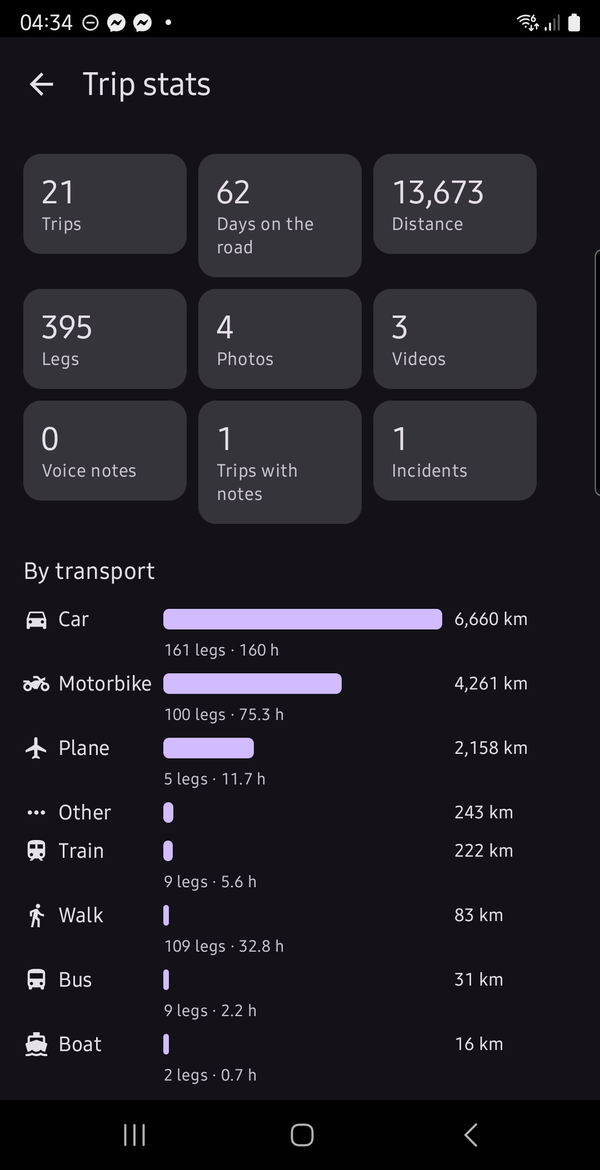
A companion's name is blurred. The photos and videos are real ones from the trip.
How to use it
Five minutes to your first trip.
Install the app
Get Adventure Timeline on Google Play and tap Install. Not using Google Play? You can sideload the APK instead.
Add your first trips
Option A: import from Google Maps Timeline. Timeline lives on your phone now, so export it from there:
- On the phone, go to Settings → Location → Location services → Timeline → Export Timeline data. This saves a Timeline.json file.
- In Adventure Timeline, open the Trips tab and tap the cloud-download icon.
- Choose the Timeline.json file, tick the trips you want and import them. A couple of years of data is large, so give it a moment.
Option B: import a GPX file. Recorded a ride on a GPS unit, or with Strava, Komoot or OsmAnd? On the Trips tab, tap +, then Import a GPX file and choose the file. Its track becomes the trip's route, and the title and dates are filled in from it (you can change them). The track is split into legs wherever you stopped for five minutes or more, such as for fuel or lunch, with the transport guessed from the file or from how fast you moved. Change any guess on the leg. The file is read on your phone and is never uploaded. A GPX file you exported from Adventure Timeline imports back in too.
Option C: start from scratch. On the Trips tab, tap + to add a trip with a title, dates, notes and the people you travelled with.
Open a trip
Tap any trip. It has six tabs:
- Map: dates, star rating, route map and companions. Tap the full-screen button for a bigger map, and switch on Waypoints to see each stop. Tap Play (the ▶ button) to watch the trip travel its route, with photos popping up, sound effects at incidents, and a sound for each kind of transport and a little celebration at the end (mute it all with the speaker button).
- Legs: each stretch of the journey by walk, bike, motorbike, car, 4WD, bus, train, plane or boat. Rate its difficulty (1 to 5) and how much you enjoyed it. Tap Add a note to this leg to pin something worth knowing to a place on the route, such as "road washed out" or "lots of potholes". Notes show as amber pins on the map, pop up when you play the trip, and can go in what you share.
- Media: your photos, videos and voice notes in one gallery.
- Notes: one note per trip, written when you add or edit it.
- Incidents: anything that went wrong on this trip, with its photos and videos.
- Share: build a post, picture or PDF of the trip to send to people. For video editing, use Export trip data in the trip's ⋮ menu: a zip of its data (JSON with legs, route, stops and place names) and photos.
Add photos, video and audio
- Use the camera and microphone buttons to capture something new.
- Choose Add from phone. The picker opens on the trip's dates, and the photos are linked, not copied, so they take no extra space.
- Try Near route to find photos taken within 1, 2 or 5 km of the trail, and look at the suggestions on the Media tab.
- The auto-add button pulls in everything your camera shot during the trip's dates.
Log an incident
- Tap the Incidents tab at the bottom, then +. You don't need a trip: log it right there on the road.
- Choose what happened from the dropdown (fell off, ran off the road, river mishap, got lost, breakdown, flat tyre, injury, bad weather and more) and how bad it was. Say who was involved: you, one or more companions, or add a new name. If you want, pick a reason from the dropdown (leave it blank if you would rather not say, and change the list in Settings). Add a few words if you like.
- Leave "Tag with my current location" ticked and it is pinned where you are. Logging later? Change the date and time.
- On the incident's card, tap the camera, video or gallery button to attach photos and videos. Open one and tap the broken-link icon to detach it from the incident.
- Once the trip is imported from Google Timeline, the incident joins the trip that covers its time, and appears on the map.
Explore your travels
- The home screen is a map of all your trips, coloured by star rating. Tap a route to open the trip, and use the chips to filter by transport.
- The Trips tab lists them. Sort by date or rating, or search by title, place name or near where you are now.
- The stats icon shows totals, distance by transport and year, and your highlights.
- Tap the compass icon to ask, "Have I been here before?" It lists earlier notes and photos within about 1 km.
Share a trip
On the Share tab, pick a title and caption, choose up to 7 photos, decide whether to include companions and notes, then share it through your phone's share sheet. Post sends a written caption (dates, distance, transport and route, which you can edit) with the map and each photo as separate pictures. Facebook and Instagram ignore text sent from another app, so the caption is also copied to your clipboard: paste it into the post. You can also share one long picture or a PDF. Photos are re-saved for sharing, which strips their embedded location.
To use the route in another app, choose GPX or KML on the Share tab. You get the route with the trip's legs as waypoints, and its incidents too if you include them, ready for a mapping app, a GPS unit or Google Earth. If you hide your home area on the Share tab, it is left out of the file too. GPX files can be brought back into Adventure Timeline with Import a GPX file, including your map notes. Each note has an Include when sharing switch, so private ones stay private.
Back it up
Open Settings → Backup and tap Back up diary. It saves every trip, route, note, incident (with who was involved), your list of incident reasons and attached file to one zip. Put it on Drive or your computer. Restore from backup brings it all back on a new phone (it replaces what's in the app). Turn on the Backup reminder and the app will nudge you every 7, 14 or 30 days.
Make it yours
In Settings you can pick a light or dark theme, set your Home area so photos taken at home aren't suggested for every trip, link companions to people in your contacts, and free up space by swapping duplicate imported copies for links to the originals.
Questions
Do I need an account?
No. There is nothing to sign up for and nothing to log in to.
Where is my data stored?
On your phone, in the app's private storage. It is only copied somewhere else when you make a backup or share a trip, and those go where you send them.
Does it work offline?
Yes. It only uses the internet to fetch map tiles from OpenStreetMap, to look up place names with Android's built-in geocoder, and, only when you tap Check for updates in Settings, to ask GitHub for the latest release number.
Does it track my location?
No. It never records your location in the background. It only reads your location when you use a feature that needs it, such as tagging a note or centring the map on you.
Why does it ask for permissions?
Only when you use the feature that needs them: camera and microphone to capture media, photos and videos to attach them, location for notes and "near me", and contacts if you want to link companions. You can refuse any of them and still use the rest. The privacy policy explains each one.
Is it affiliated with Google?
No. Adventure Timeline is an independent project. "Google" and "Google Maps Timeline" are trademarks of Google LLC, used only to describe the files the app can import.
Is it free?
Yes, and it is open source under the GNU General Public License v3.0. You can read the code and build it yourself.
Why is it free? Because I wanted to give something back to the most awesome community of Adv riders, and to be totally honest, I didn't want to pay for something when I could create it myself and get exactly what I needed.
Something is not working. Who do I ask?
Email support@jonesie.net.nz or open an issue on GitHub. Please say which phone and Android version you have.